That little robotic companion of yours is a modern marvel, isn’t it? It diligently zips around, gobbling up dust bunnies and pet hair, saving you countless hours of back-breaking chores. In my house, with two dogs and a cat, our robot vacuum isn’t just a gadget; it’s a card-carrying member of the family. But then, it happens. The dreaded, unexpected silence, followed by a series of cryptic beeps or a notification on your phone with a mysterious error code. Suddenly, your futuristic floor cleaner is just a very expensive, stationary piece of plastic. Don’t panic. Learning How To Troubleshoot Error Codes Robot Vacuum models spit out is easier than you think. This guide will turn you from a confused owner into a confident problem-solver.
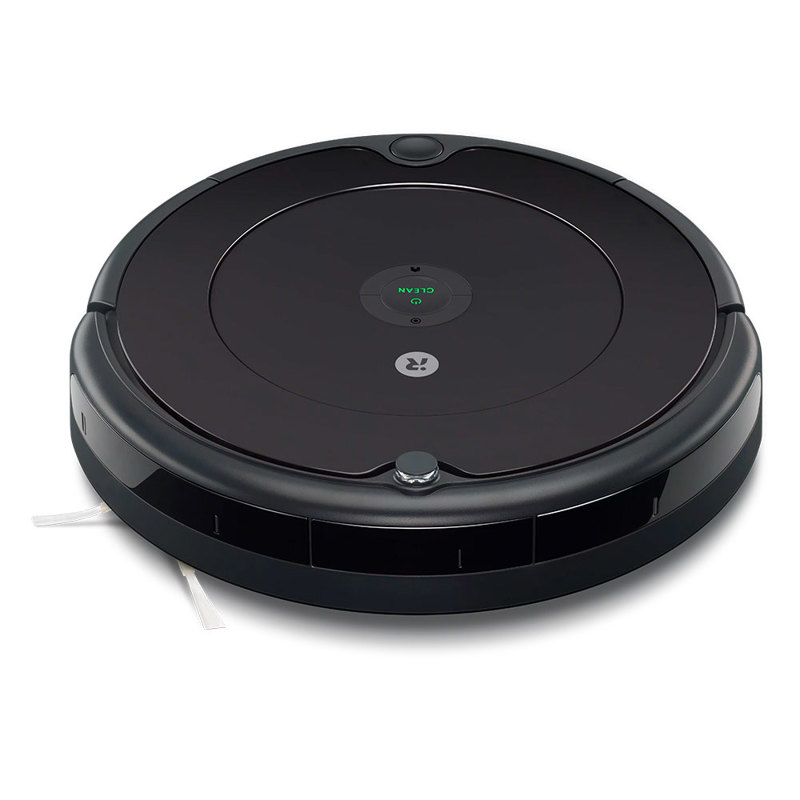
Cracking the Code: Understanding Robot Vacuum Errors
First things first, an error code isn’t a sign of a total meltdown. Think of it as your robot trying to talk to you. It’s telling you exactly what’s wrong, but in its own language of numbers and beeps. Most errors fall into a few common categories, and understanding them is the first step.
- Obstruction Errors: These are the most common. The robot has run into something it can’t handle, or something is tangled in its moving parts.
- Navigation & Sensor Errors: The robot is lost, confused, or thinks it’s about to fall off a cliff (even if it’s in the middle of your living room).
- Charging & Battery Errors: It can’t find its way back to the dock, or it isn’t charging correctly.
- Suction & Bin Errors: The vacuum motor is struggling, or the dustbin is full and needs your attention.
Before diving deep, there’s a universal first-aid kit for almost any electronic device.
Your First-Response Troubleshooting Checklist
When your robot vacuum throws a fit, don’t immediately start unscrewing things. Run through this simple, three-step process first. You’d be surprised how often it solves the problem.
- The Classic “Turn It Off and On Again”: The oldest trick in the tech book, and for good reason. Find the main power switch on your robot (it might be on the side or underneath) and turn it off completely. Wait a full 30 seconds to let all the internal components reset, then turn it back on. This can clear temporary software glitches.
- Consult the App: Your robot’s companion app is your best friend. Open it up. It will usually provide a more detailed explanation of the error code than the beeps alone. It might say “Main brush is tangled” or “Cliff sensors are dirty,” which is far more helpful than “Error 5.”
- Perform a Quick Physical Inspection: Pick up your robot. Is there a sock wrapped around the main brush? Is a phone charger cord tangled in a wheel? Is the dustbin packed so full it can’t breathe? A quick visual once-over can reveal the obvious culprit.
How to Troubleshoot Common Robot Vacuum Error Codes
If the basic checklist didn’t work, it’s time to play detective. Let’s break down the most frequent issues and how to solve them.
“My Wheels are Stuck!” – Wheel & Obstruction Errors
This usually happens when your robot tries to climb a high-pile rug, gets snagged on a stray cable, or wedges itself under furniture.
- The Cause: The robot’s wheels are spinning, but its internal sensors detect it isn’t moving.
- The Fix:
- Lift the robot and move it to a clear area on the floor.
- Flip it over and inspect the wheels. Push them in and out; they should spring back freely.
- Check for anything wrapped around the axle. Hair, string, and carpet fibers are common offenders. Use scissors or the cleaning tool that came with your vacuum to carefully cut them away.
“Help, I’m Lost!” – Navigation and Sensor Errors
If your robot is bumping into walls repeatedly, avoiding certain areas, or stopping in the middle of an open room claiming it’s at a “cliff,” you likely have a sensor issue. This is especially true for models with advanced LiDAR and SLAM smart navigation.
- The Cause: The robot’s “eyes”—its various sensors—are dirty, smudged, or blocked.
- The Fix:
- Get a clean, dry microfiber cloth. Do not use cleaning solutions or water, as this can damage the sensors.
- Gently wipe all the sensors. You’ll typically find:
- Cliff Sensors: Usually 3 or 4 dark, transparent circles on the underside of the robot.
- Bump Sensor: The entire front bumper. Make sure it can be pressed in and springs back out.
- Wall Sensor: A small sensor on one side of the robot that helps it run along baseboards.
- LiDAR Turret: The raised, spinning “turret” on top of many modern vacuums. Wipe the lens on this turret gently.
As robotics engineer Dr. Alistair Finch often says, “Think of your robot’s sensors as its eyes. If you put on smudged glasses, you’d bump into things too. A simple wipe-down is the most effective fix 90% of the time for navigation-related error codes.”
“I Can’t Find My Way Home” – Charging & Docking Errors
There’s nothing sadder than finding your robot with a dead battery in a random corner because it couldn’t dock.
- The Cause: The charging contacts are dirty, or the self-emptying dock is not positioned correctly.
- The Fix:
- Unplug the charging dock.
- Take your dry microfiber cloth and firmly wipe the metal charging contacts on both the dock and the underside of the robot. They can get surprisingly grimy.
- Ensure the dock is on a hard, level surface with plenty of clearance (usually about 2-3 feet on each side and 4-5 feet in front).
- Plug the dock back in and place the robot on it manually to confirm the charging indicator light comes on.
“Something’s Clogged!” – Suction & Brush Roll Errors
If your robot sounds louder than usual or stops and complains about its main brush or fan, you’ve got a clog. This is a constant battle in my home, thanks to a Golden Retriever who sheds enough to knit a second dog every week.
- The Cause: The airway from the brush to the bin is blocked, reducing suction power.
- The Fix:
- Empty the dustbin.
- Remove the filter(s) and tap them out over a trash can. If they’re washable, rinse them with water and let them dry completely (at least 24 hours) before reinstalling.
- Flip the robot over and remove the main brush. Most have a simple release-tab guard.
- Pull out all the tangled hair and debris. Again, the cleaning tool is your best friend here.
- Look into the suction inlet where the brush sits. You might find a rogue bottle cap or kid’s toy lodged in there.
|
Our Picks for the Best Robot Vacuum in 2026
As an Amazon Associate, we earn from qualifying purchases.
|
||
| Num | Product | Action |
|---|---|---|
| 1 | Shark AV2501S AI Ultra Robot Vacuum, with Matrix Clean, Home Mapping, 30-Day Capacity HEPA Bagless Self Empty Base, Perfect for Pet Hair, Wifi, Dark Grey |

|
| 2 | Shark Matrix Plus 2in1 Robot Vacuum & Mop with Sonic Mopping, Matrix Clean, Home Mapping, HEPA Bagless Self Empty Base, CleanEdge, for Pet Hair, WiFi, Compatible with Alexa, Black/Gold (AV2613WA) |
|
| 3 | Shark AV2501S AI Ultra Robot Vacuum, with Matrix Clean, Home Mapping, 30-Day Capacity HEPA Bagless Self Empty Base, Perfect for Pet Hair, Wifi, Dark Grey |
|
| 4 | Shark Robot Vacuum & Mop Combo, Powerful Suction, Matrix Plus, 60-Day Debris Capacity, HEPA Bagless Self Empty Base, Sonic Mopping, Home Mapping for Pet Hair - Carpets & Hardfloor, AV2610WA |
|
| 5 | ILIFE A30 Pro Robot Vacuum and Mop, Self Emptying Station for 60 Days, 5000Pa Suction, LiDAR Navigation, No-Go Zones, 2.4G WiFi/App/Alexa/Remote Control, Roller Brush for Carpet, Hard Floors, 110V |
|
| 6 | ILIFE V2 Robot Vacuum Cleaner, Tangle-Free Suction, 120 Mins Runtime, Slim, Self-Charging Robotic Vacuum Cleaner, Ideal for Pet Hair and Hard Floors |
|
| 7 | Shark AV753 ION Robot Vacuum, Tri-Brush System, Wifi Connected, 120 Min Runtime, Works with Alexa, Multi Surface Cleaning, Grey |
|
| 8 | Tikom Robot Vacuum and Mop Combo, 5000Pa Robotic Vacuum Cleaner, 150 Min Max, App & Remote Control, Ideal for Hard Floor, Carpet, Pet Hair, Self-Charge(G8000 Max) |
|
| 9 | ILIFE V2 Robot Vacuum Cleaner, Tangle-Free Suction, 120 Mins Runtime, Slim, Self-Charging Robotic Vacuum Cleaner, Ideal for Pet Hair and Hard Floors |
|
| 10 | MONSGA Robot Vacuum and Mop Combo, 5000Pa Robotic Vacuum with 3.5L Self Emptying Station, Lidar Navigation Robot Vacuum Cleaner, 180mins Runtime, APP/Remote/Voice Control, for Hard Floors and Carpets |
|
Proactive Maintenance to Prevent Future Errors
The best way to deal with error codes is to prevent them from happening in the first place. A little regular TLC goes a long way. Think of it like changing the oil in your car.
- Weekly: Empty the dustbin and wipe down the sensors.
- Bi-Weekly: Clean the main brush and side brushes of any tangled hair.
- Monthly: Wash or replace the filter (check your manual). Check the wheels for debris. Wipe the charging contacts.
Following a simple maintenance routine is a key part of how to troubleshoot error codes robot vacuum problems before they even start. You can find more detailed tips in our guide to robot vacuum maintenance.
Frequently Asked Questions (FAQ)
Why does my robot vacuum keep beeping with an error code?
A beeping error code is your robot’s primary way of communicating a problem. It usually indicates an issue with its wheels, brushes, sensors, or navigation system. Check your companion app for a specific description of the error.
How do I perform a hard reset on my robot vacuum?
Most models can be reset by pressing and holding the main power or “Home” button for 10-15 seconds until the lights flash or you hear a confirmation sound. This often clears persistent software bugs, but it might also delete your saved maps, so use it as a last resort.
Can a dirty sensor really cause a major robot vacuum error code?
Absolutely. The cliff sensors, in particular, are a common culprit. If they are dusty or smudged, the robot will think it’s at the edge of a staircase and refuse to move, even on a perfectly flat floor. A quick wipe usually fixes this instantly.
What if I can’t find my specific error code in the manual?
If you have an obscure error code, the best first step is to search for the robot’s model number and the error code online. Often, you’ll find a forum or a Reddit thread where other users have solved the exact same problem. If not, it’s time to contact the manufacturer’s customer support.
Will a firmware update help with troubleshooting error codes on a robot vacuum?
Yes, it can. Manufacturers frequently release firmware updates to fix bugs, improve navigation algorithms, and resolve known error-causing issues. Always ensure your robot vacuum’s firmware is up to date through its app.
Your Floors Will Thank You
Navigating the world of robot vacuum error codes can seem intimidating at first, but as you’ve seen, most issues have simple, straightforward solutions. By understanding the common problems and knowing the basic steps for cleaning sensors, brushes, and wheels, you’re now equipped to handle 90% of what your robotic helper might throw at you. A well-maintained robot is a happy, efficient robot. Now that you know how to troubleshoot error codes robot vacuum models present, you can ensure many more years of effortlessly clean floors.