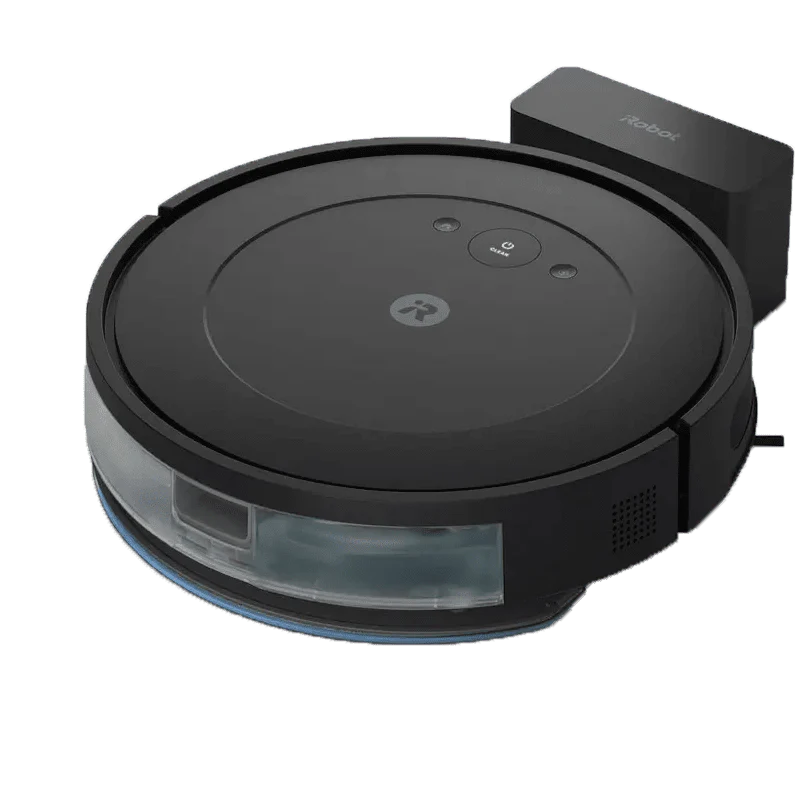
It’s a modern marvel, isn’t it? That little disc-shaped buddy gliding silently across your floors, gobbling up dust bunnies, pet hair, and yesterday’s cereal crumbs. In my house, our robot vacuum has been a game-changer for keeping things tidy. But what happens when your trusty sidekick starts acting up? Maybe it’s spinning in circles, ignoring no-go zones, or refusing to connect to Wi-Fi. Before you start thinking it’s developed a mind of its own, know that the solution is often surprisingly simple. Learning How To Reset Robot Vacuum is the most powerful troubleshooting skill in any smart home owner’s arsenal. It’s the universal “turn it off and on again” for the 21st century.
This guide will walk you through everything you need to know, from the gentle nudge of a soft reset to the full memory wipe of a factory reset. We’ll demystify the process and get your cleaning companion back on track.
Why Would You Need to Reset Your Robot Vacuum?
Think of your robot vacuum as a small, specialized computer on wheels. It’s running complex software to manage its sophisticated hardware—things like LiDAR sensors for mapping your home with lasers, SLAM (Simultaneous Localization and Mapping) algorithms to know where it is and where it’s been, and smart navigation to avoid your furniture. Just like your phone or laptop, this software can sometimes hit a snag.
Here are the most common reasons you might need a reset:
- Connectivity Chaos: The robot consistently fails to connect to your Wi-Fi network or drops the connection frequently.
- Mapping Meltdown: It suddenly forgets the floor plan, starts mapping a room incorrectly, or repeatedly gets lost in an area it used to navigate perfectly.
- Erratic Behavior: The vacuum starts bumping into walls excessively, spinning in circles, ignoring scheduled cleanings, or can’t find its way back to the charging dock.
- Post-Maintenance Glitches: After cleaning sensors or replacing a part like a brush or filter, the device might not recognize the new component correctly.
- Preparing to Sell or Gift: If you’re passing the robot on to a new owner, a factory reset is essential to wipe your personal data, like Wi-Fi credentials and home maps.
Before the Big Reset: Try These Simple Fixes First
Hold on there! A full reset, especially a factory reset, is often the last resort because it can wipe all your custom settings. Before you go for the nuclear option, let’s run through a quick troubleshooting checklist. You’d be surprised how often one of these simple steps solves the problem.
- The Classic Power Cycle: The simplest trick in the book. Turn the robot completely off using its physical power button (you might need to hold it for a few seconds). Let it sit for a full minute, then turn it back on. This can clear minor memory glitches.
- Give It a Good Clean: Your robot’s “eyes” are its sensors. Dust, hair, or smudges on the cliff sensors (underneath), bump sensors (on the bumper), or the main navigation sensor (often the raised turret on top) can cause serious confusion. Wipe them all down with a clean, dry microfiber cloth. Don’t forget to check for debris tangled in the wheels and brushes.
- Check the App and Firmware: Open the companion app on your phone. Is there a pending firmware update? Developers are constantly pushing out updates to fix bugs. Installing the latest version can often resolve performance issues.
- Reboot Your Router: If the problem is connectivity, the issue might not be the robot at all. Unplug your Wi-Fi router for 30 seconds and plug it back in. Once your internet is back up, see if the robot reconnects.
If you’ve tried all these and your robot is still acting possessed, then it’s time to talk about how to perform a proper reset.
How to Reset Robot Vacuum: The Two Main Types
Resetting your vacuum generally falls into two categories: a soft reset and a hard (or factory) reset. Think of it like rebooting your computer versus reinstalling its entire operating system.
The Soft Reset: A Gentle Reboot
A soft reset is essentially a more forceful power cycle. It forces the robot’s internal processor to restart, clearing out temporary files and resolving minor software hiccups without erasing your saved data like maps and schedules.
How to do it (General Steps):
The exact method varies by brand (always check your manual!), but it usually involves pressing and holding a specific button or a combination of buttons for 5-10 seconds until you hear a beep or see the lights flash.
- For many iRobot Roomba models, you press and hold the “CLEAN” button for about 10-20 seconds.
- On many Roborock and Eufy models, you can often find a small, recessed reset button near the dustbin that you’ll need a paperclip or SIM tool to press.
A soft reset is the perfect first step for glitches like a frozen app connection or a robot that won’t start a cleaning cycle.
The Hard Reset: A Fresh Start
A hard reset, or factory reset, is the ultimate troubleshooting tool. It reverts your robot vacuum to the state it was in when you first took it out of the box. This will erase everything:
- Saved maps and floor plans
- No-go zones and virtual walls
- Saved Wi-Fi networks and passwords
- Custom cleaning schedules
- Connections to voice assistants like Alexa or Google Assistant
When should you use a factory reset? Only when a soft reset and other troubleshooting steps have failed to fix a persistent, major issue, like a completely corrupted map or a total inability to connect to any network.
How to do it (General Steps):
Again, this is highly brand-specific, but the process is usually more involved to prevent you from doing it accidentally.
- Find the Button Combination: It’s often a combination of buttons. For example, you might need to press and hold the “Home” and “Power” buttons simultaneously for 10 seconds.
- Use the App: Many modern robot vacuums allow you to perform a factory reset directly from the settings menu within the companion app. This is often the easiest and safest method.
- Confirm the Reset: The robot will usually give an audible confirmation, like a chime or a spoken message, to let you know the reset has begun. The device will then restart, and you’ll have to go through the initial setup process all over again, just like you did on day one.
Expert Tip: “Think of a factory reset as a digital spring clean for your robot’s brain,” says Dr. Alistair Finch, a consumer robotics engineer. “Over time, conflicting data from firmware updates and minor mapping errors can accumulate. A factory reset wipes the slate clean, allowing the core navigation and cleaning software to operate from a perfect baseline again.”
What to Expect After You Reset Your Robot
So you’ve done it. The reset is complete. Now what?
If you performed a soft reset, your robot should simply reboot and be ready to go, retaining all its previous knowledge.
If you performed a factory reset, you’re starting from scratch. You will need to:
- Reconnect the robot to your Wi-Fi network via the app.
- Send it on a new “mapping run” to re-learn the layout of your home. This can take one or more full cleaning cycles.
- Redefine all your rooms, no-go zones, and cleaning schedules.
- Relink it to your smart home ecosystem (Amazon Alexa, Google Home, etc.).
It’s a bit of a hassle, but it’s a small price to pay for a robot that functions correctly and keeps your floors spotless.
|
Our Picks for the Best Robot Vacuum in 2026
As an Amazon Associate, we earn from qualifying purchases.
|
||
| Num | Product | Action |
|---|---|---|
| 1 | Tikom Robot Vacuum and Mop Combo, 5000Pa Robotic Vacuum Cleaner, 150 Min Max, App & Remote Control, Ideal for Hard Floor, Carpet, Pet Hair, Self-Charge(G8000 Max) |

|
| 2 | Shark Matrix Plus 2in1 Robot Vacuum & Mop with Sonic Mopping, Matrix Clean, Home Mapping, HEPA Bagless Self Empty Base, CleanEdge, for Pet Hair, WiFi, Compatible with Alexa, Black/Gold (AV2613WA) |
|
| 3 | Shark AV2501S AI Ultra Robot Vacuum, with Matrix Clean, Home Mapping, 30-Day Capacity HEPA Bagless Self Empty Base, Perfect for Pet Hair, Wifi, Dark Grey |
|
| 4 | Shark AV753 ION Robot Vacuum, Tri-Brush System, Wifi Connected, 120 Min Runtime, Works with Alexa, Multi Surface Cleaning, Grey |
|
| 5 | ILIFE V2 Robot Vacuum Cleaner, Tangle-Free Suction, 120 Mins Runtime, Slim, Self-Charging Robotic Vacuum Cleaner, Ideal for Pet Hair and Hard Floors |
|
| 6 | MONSGA Robot Vacuum and Mop Combo, 5000Pa Robotic Vacuum with 3.5L Self Emptying Station, Lidar Navigation Robot Vacuum Cleaner, 180mins Runtime, APP/Remote/Voice Control, for Hard Floors and Carpets |
|
| 7 | Shark AV2501S AI Ultra Robot Vacuum, with Matrix Clean, Home Mapping, 30-Day Capacity HEPA Bagless Self Empty Base, Perfect for Pet Hair, Wifi, Dark Grey |
|
| 8 | Shark Robot Vacuum & Mop Combo, Powerful Suction, Matrix Plus, 60-Day Debris Capacity, HEPA Bagless Self Empty Base, Sonic Mopping, Home Mapping for Pet Hair - Carpets & Hardfloor, AV2610WA |
|
| 9 | ILIFE V2 Robot Vacuum Cleaner, Tangle-Free Suction, 120 Mins Runtime, Slim, Self-Charging Robotic Vacuum Cleaner, Ideal for Pet Hair and Hard Floors |
|
| 10 | ILIFE A30 Pro Robot Vacuum and Mop, Self Emptying Station for 60 Days, 5000Pa Suction, LiDAR Navigation, No-Go Zones, 2.4G WiFi/App/Alexa/Remote Control, Roller Brush for Carpet, Hard Floors, 110V |
|
Proactive Care to Keep Your Robot Happy
The best way to deal with problems is to prevent them from happening in the first place. Consistent maintenance is key to maximizing your robot’s performance and lifespan, reducing the need to ever wonder how to reset robot vacuum.
- Clean the Sensors Weekly: As we mentioned, clean sensors are critical for smart navigation. Make it a weekly habit.
- Empty the Bin Regularly: An overfull dustbin reduces suction power. If you don’t have a self-emptying model, empty it after every one or two cleaning runs.
- De-tangle the Brushes: Long hair and carpet fibers are the mortal enemy of your robot’s main brush. Flip it over once a week and clear any tangles.
- Keep the Firmware Updated: Always install firmware updates as soon as they become available in the app.
- Provide a Clear Docking Area: Ensure the charging dock has plenty of clear space around it so the robot can return home without issue. A good rule of thumb is about 1.5 feet on each side and 3 feet in front.
Following these tips, which you can find in more detail in [our complete guide to robot vacuum maintenance], will keep your device running smoothly for years.
Frequently Asked Questions (FAQ)
Q1: Will resetting my robot vacuum fix its low suction power?
A: Unlikely. A reset fixes software issues. Low suction power is almost always a physical problem. Check for a full dustbin, a clogged filter, or blockages in the airway between the brush and the bin.
Q2: How often should I perform a factory reset on my robot vacuum?
A: Very rarely. You should only perform a factory reset as a last-resort troubleshooting step when all other solutions have failed. There’s no need to do it as routine maintenance.
Q3: What’s the main difference between a soft reset and a hard reset?
A: A soft reset is a simple reboot that clears temporary memory but keeps your data (maps, schedules). A hard (or factory) reset is a complete wipe that erases all your data and returns the robot to its original settings.
Q4: Will I lose my home maps if I do a soft reset?
A: No, a soft reset is designed to preserve your saved maps and settings. Only a factory reset will delete this information.
Q5: My robot vacuum won’t respond to the reset commands. What now?
A: If the robot is completely unresponsive, first ensure it has some charge. Leave it on the dock for at least 30 minutes. If it still won’t respond to reset button combinations, it’s time to contact the manufacturer’s customer support. There may be a deeper hardware issue at play.
Your Cleaning Companion, Restored
Your robot vacuum is a sophisticated piece of technology designed to make your life easier. When it hits a snag, it can be frustrating, but now you’re equipped with the knowledge to handle it. From a simple power cycle to a full factory reset, you have a clear path to resolving software glitches.
Remember to start with the simple fixes first and only escalate to a full reset when necessary. By understanding how to reset robot vacuum, you’re not just fixing a machine; you’re taking control of your smart home and ensuring you can continue to enjoy the simple luxury of effortlessly clean floors.