Ever get that feeling that your trusty robot vacuum, the one that diligently zips around your home keeping the floors spotless, is just… a little less zippy than it used to be? Maybe it’s getting stuck in the same old spots or its cleaning patterns seem a bit off. Before you start thinking about a replacement, let me ask you a question: when was the last time you gave its brain an upgrade? That’s right, we’re talking about learning How To Update Robot Vacuum Firmware, and it’s one of the most important, yet often overlooked, aspects of robot maintenance. It’s the secret sauce to keeping your smart cleaning companion performing at its absolute peak.
Think of firmware as the operating system for your robot. It’s the invisible code that controls everything from its smart navigation to its suction power management. Just like your smartphone gets updates to improve performance and add new features, your robot vacuum needs them too. These updates are how manufacturers send out improvements, fix annoying bugs, and even unlock brand-new capabilities you didn’t have on day one. In my house, a firmware update once completely transformed how my robot handled the tricky transition from hardwood to a thick area rug. It went from a daily struggle to a seamless glide, all thanks to a small software patch.
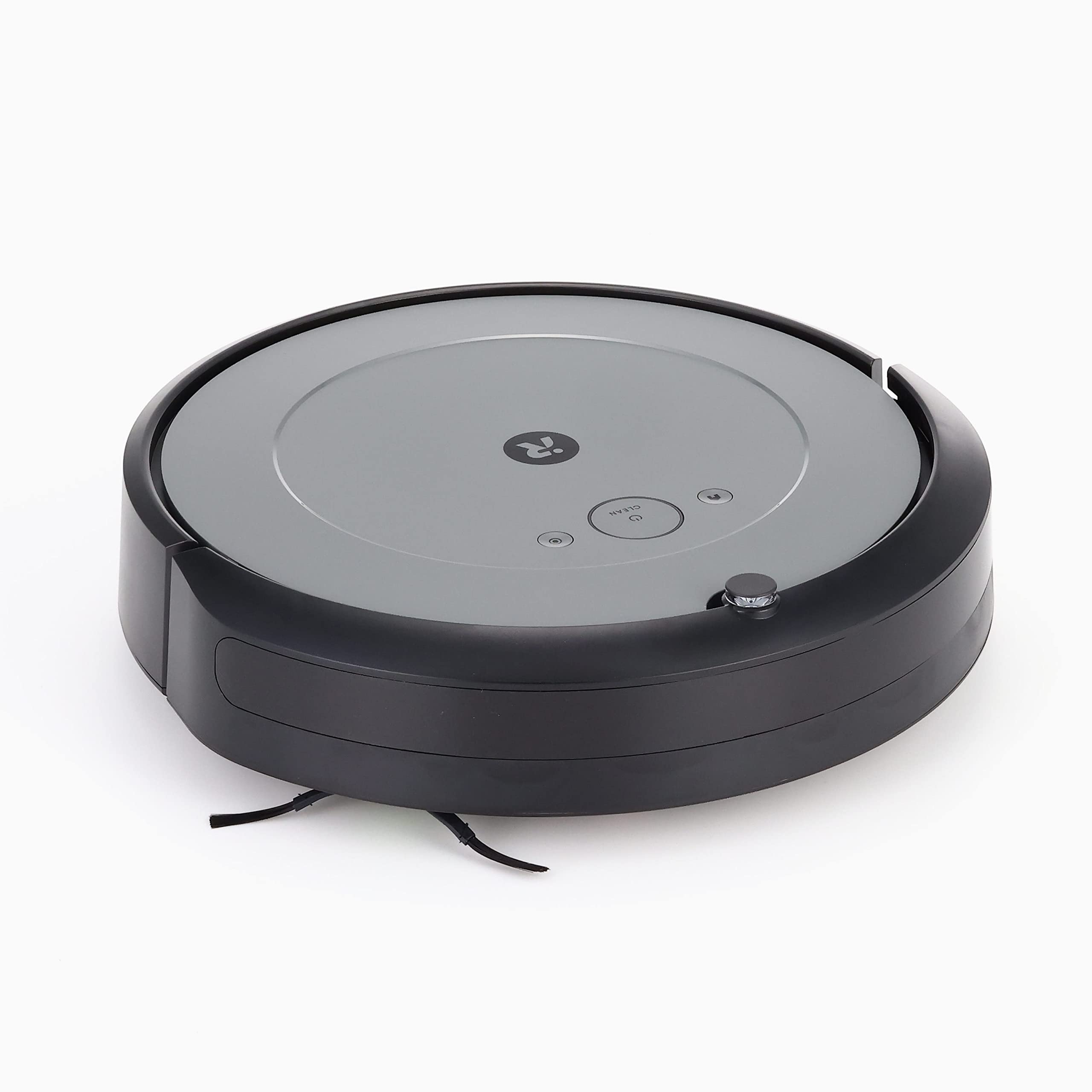
So, What Exactly Is Firmware, Anyway?
In simple terms, firmware is the permanent software programmed into your robot vacuum’s hardware. It’s the set of instructions that tells the device how to function. It’s not the app on your phone—that’s just the remote control. The firmware is the core intelligence living inside the robot itself, managing its sensors, motors, and cleaning logic.
When you update the firmware, you’re essentially rewriting those core instructions with a newer, better version. It’s like sending your robot back to school to learn the latest cleaning techniques and how to better understand its environment, especially for advanced systems using LiDAR or SLAM (Simultaneous Localization and Mapping) technology.
Why You Absolutely Should Update Your Robot Vacuum Firmware
Still on the fence? Let’s be honest, we all have that “update later” reflex. But when it comes to your robot, ignoring these updates is like refusing a free tune-up for your car. Here’s exactly what you’re gaining with each update:
- Enhanced Cleaning Performance: The most common updates refine the robot’s navigation algorithms. This means smarter cleaning paths, better obstacle avoidance, and fewer “I’m stuck under the couch” notifications. Your robot literally gets smarter at its primary job.
- Brand-New Features: This is the exciting part! Manufacturers often roll out new capabilities via firmware. One day your robot just vacuums, and after an update, it might suddenly have multi-floor mapping, room-specific cleaning schedules, or compatibility with a new voice assistant.
- Critical Bug Fixes: Does your robot occasionally spin in circles or forget where its charging dock is? These are often software glitches that a firmware update is designed to squash for good.
- Improved Battery Efficiency: Updates can optimize how the robot uses its power, leading to longer cleaning cycles and a healthier battery life in the long run.
- Essential Security Patches: In a world of connected devices, security is paramount. Firmware updates often include patches to protect your device and your home network from potential vulnerabilities.
Expert Tip: “We often see users complaining about performance degradation over time,” notes Dr. Alistair Finch, a consumer robotics engineer. “In over 70% of those cases, the issue isn’t hardware failure; it’s simply outdated firmware. A five-minute update can feel like you’ve got a brand-new machine.”
The Step-by-Step Guide: How to Update Robot Vacuum Firmware
Alright, let’s get down to the nuts and bolts. The good news is that most manufacturers have made this process incredibly simple. While the exact button placement might vary slightly between brands like Roborock, iRobot, or Eufy, the core principles are almost always the same.
- Open the Companion App: Your robot’s entire world is managed through its app on your smartphone or tablet. Open it up and make sure you’re logged in.
- Ensure a Strong Wi-Fi Connection: The update is downloaded over the internet. Make sure your robot is in an area with a stable and strong Wi-Fi signal. A failed download is the number one cause of update issues.
- Dock Your Robot and Check Its Battery: This is a crucial step. Most robots will not even allow an update to begin unless they are on their charging dock and have a significant charge (usually over 50%). This prevents the robot from dying mid-update, which can cause serious problems.
- Find the Firmware Update Section: This is usually located in the “Settings” or “About” section of the app. Look for menu items named “Firmware Update,” “Check for Updates,” or “Device Info.” You might see a little red dot or notification icon if an update is available.
- Start the Update and Be Patient: Once you tap the “Update” button, the process will begin. The app will download the file and then transfer it to your robot. During this time, the robot’s lights might flash in a specific pattern, and it may make some noises. Do not turn the robot off, take it off the dock, or close the app during this process.
- Wait for the Reboot: After the update is installed, the robot will typically reboot itself automatically. This can take a few minutes. Once it’s done, the app will notify you that the update was successful. Congratulations, your robot is now smarter than it was 10 minutes ago!
What If Something Goes Wrong? Troubleshooting Common Issues
Sometimes, technology doesn’t play nice. If your firmware update hits a snag, don’t panic. Here are a few common problems and how to solve them.
My Update Failed or Got Stuck. What Now?
The most common culprit is a weak Wi-Fi connection. Move the robot’s dock closer to your router and try again. If it’s still stuck, try rebooting everything: close the app on your phone, power cycle your robot by turning it off and on again, and even restart your router. This “turn it off and on again” trick solves a surprising number of tech headaches.
I Can’t Find the Update Option in the App.
First, ensure your companion app itself is updated to the latest version from the App Store or Google Play Store. An outdated app might not show the option for a new firmware update. If the app is up to date, it’s possible your model is older and no longer receives updates, or there simply isn’t a new one available.
My Robot is Acting Weird After the Update.
While rare, a new update can sometimes introduce a new bug or conflict with your existing maps. The first thing to try is a simple reboot of the robot. If the strange behavior continues, the most effective (though slightly annoying) solution is often to perform a factory reset and have the robot remap your home. This gives it a clean slate to work with the new firmware. For more on this, you can explore our detailed guide on [how to reset your robot vacuum].
|
Our Picks for the Best Robot Vacuum in 2026
As an Amazon Associate, we earn from qualifying purchases.
|
||
| Num | Product | Action |
|---|---|---|
| 1 | Shark AV753 ION Robot Vacuum, Tri-Brush System, Wifi Connected, 120 Min Runtime, Works with Alexa, Multi Surface Cleaning, Grey |

|
| 2 | Shark AV2501S AI Ultra Robot Vacuum, with Matrix Clean, Home Mapping, 30-Day Capacity HEPA Bagless Self Empty Base, Perfect for Pet Hair, Wifi, Dark Grey |
|
| 3 | Shark Matrix Plus 2in1 Robot Vacuum & Mop with Sonic Mopping, Matrix Clean, Home Mapping, HEPA Bagless Self Empty Base, CleanEdge, for Pet Hair, WiFi, Compatible with Alexa, Black/Gold (AV2613WA) |
|
| 4 | Shark Robot Vacuum & Mop Combo, Powerful Suction, Matrix Plus, 60-Day Debris Capacity, HEPA Bagless Self Empty Base, Sonic Mopping, Home Mapping for Pet Hair - Carpets & Hardfloor, AV2610WA |
|
| 5 | ILIFE A30 Pro Robot Vacuum and Mop, Self Emptying Station for 60 Days, 5000Pa Suction, LiDAR Navigation, No-Go Zones, 2.4G WiFi/App/Alexa/Remote Control, Roller Brush for Carpet, Hard Floors, 110V |
|
| 6 | ILIFE V2 Robot Vacuum Cleaner, Tangle-Free Suction, 120 Mins Runtime, Slim, Self-Charging Robotic Vacuum Cleaner, Ideal for Pet Hair and Hard Floors |
|
| 7 | Tikom Robot Vacuum and Mop Combo, 5000Pa Robotic Vacuum Cleaner, 150 Min Max, App & Remote Control, Ideal for Hard Floor, Carpet, Pet Hair, Self-Charge(G8000 Max) |
|
| 8 | ILIFE V2 Robot Vacuum Cleaner, Tangle-Free Suction, 120 Mins Runtime, Slim, Self-Charging Robotic Vacuum Cleaner, Ideal for Pet Hair and Hard Floors |
|
| 9 | MONSGA Robot Vacuum and Mop Combo, 5000Pa Robotic Vacuum with 3.5L Self Emptying Station, Lidar Navigation Robot Vacuum Cleaner, 180mins Runtime, APP/Remote/Voice Control, for Hard Floors and Carpets |
|
| 10 | Shark AV2501S AI Ultra Robot Vacuum, with Matrix Clean, Home Mapping, 30-Day Capacity HEPA Bagless Self Empty Base, Perfect for Pet Hair, Wifi, Dark Grey |
|
Frequently Asked Questions (FAQ)
How often should I check for firmware updates for my robot vacuum?
Most apps will notify you automatically when a new update is available. However, it’s a good practice to manually check within the app’s settings every month or two, just in case a notification was missed.
Will updating the firmware delete my saved maps and schedules?
In 99% of cases, no. Firmware updates are designed to preserve your data, including maps, no-go zones, and cleaning schedules. However, it’s always a good idea to double-check your settings after an update is complete.
Can I update my robot vacuum firmware without Wi-Fi?
Unfortunately, no. A stable internet connection is required to download the update file from the manufacturer’s servers and transfer it to the robot.
What happens if I ignore firmware updates for a long time?
Your robot will likely continue to function, but you’ll miss out on performance improvements, bug fixes, and new features. Over time, its cleaning efficiency and intelligence will fall behind newer models, and it could become more susceptible to software glitches.
Do all robot vacuums receive firmware updates?
Most modern, app-connected robot vacuums from major brands receive regular updates, especially in the first few years after their release. However, very cheap or non-branded models may not offer this feature, which is a key reason to invest in a reputable brand.
The Final Word on Firmware
Keeping your robot vacuum’s firmware up to date is one of the simplest and most effective ways to ensure you’re getting the most out of your investment. It’s a free, easy process that keeps your device secure, efficient, and equipped with the latest technology the manufacturer has to offer. So next time you open your robot’s app, take a quick detour into the settings. Learning how to update robot vacuum firmware takes just a few taps but can make a world of difference in keeping your floors—and your smart home—in perfect order.